
⚡Get Started Quickly
Quickly create business modules using the Microi low-code platform.
🎥Video tutorial
- To be re-recorded and uploaded
- Historical video tutorial: https://net.itdos.net:999/sharing/ZBN5cLPKa
📖Introduction
Microi code for developers, using the traditional development thinking process to create modules, support two ways:
| Method | Process |
|---|---|
| Method 1 | Create table in platform [form engine] → design form → create module and associate form |
| Way 2 | Create physical tables in database tools (such as Navicat) → load physical tables on the platform → design forms → create modules |
flexible association
- A physical table can be associated with design modules by multiple [module engines].
- A physical table can be approved by multiple [Process Engine] associated processes.
- A physical table can be associated with multiple [Report Engines] to design reports.
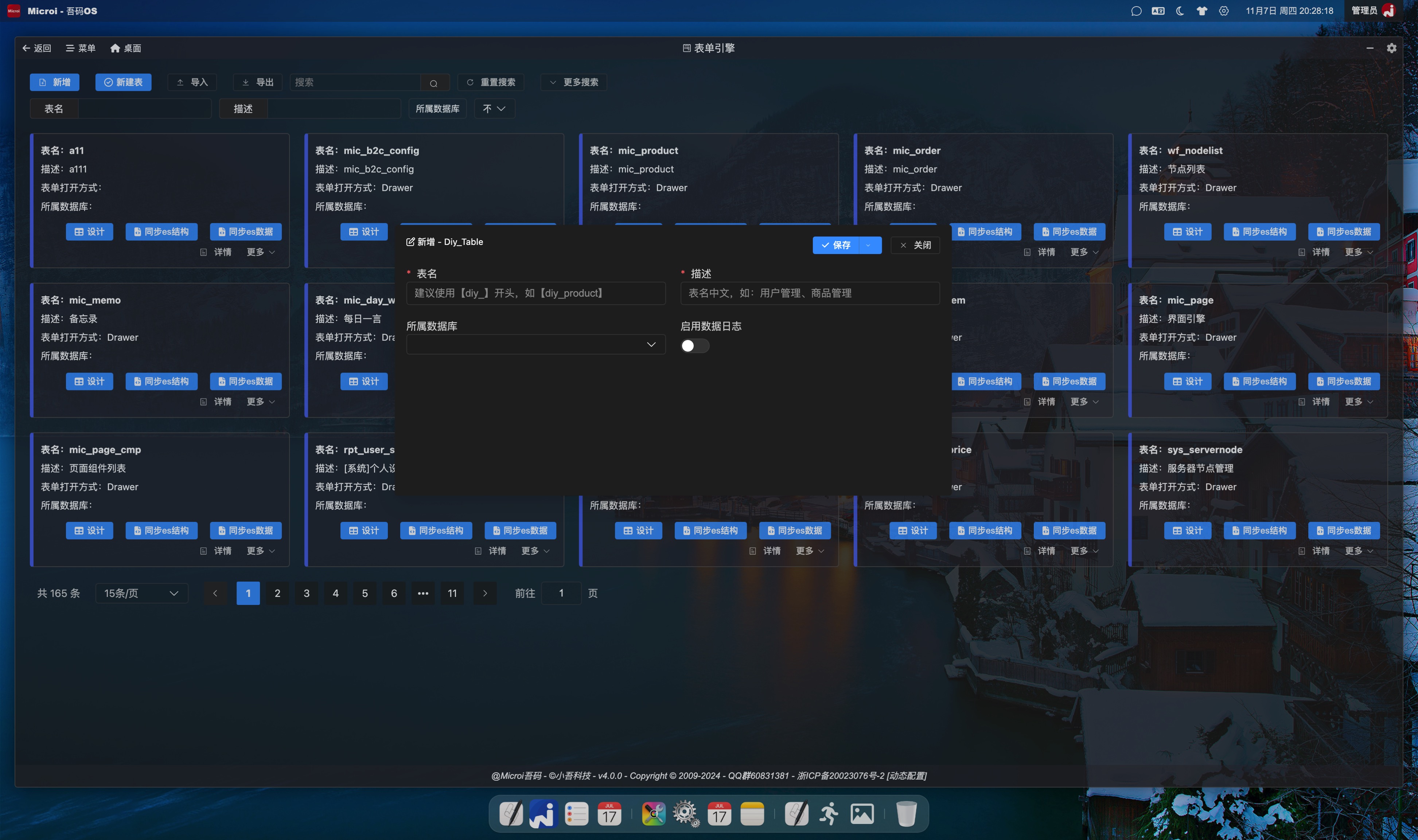
📝Step 1: Create a physical table
Method 1: Create through the platform
- Enter the [Form Engine] module and add a new piece of data to automatically create a new physical table in the database.
- When there are multiple databases, you can choose to specify which database to create (if not, it is the main database)
Method 2: Create through database tools
- Add physical tables and fields to database management tools (such as Navicat)
- Main Library * *: Enter [Form Engine], select Physical Table in the [Non-Diy Table] drop-down box → Click [Load as Diy Table]]
- Extended Library: Enter [Database Extension], select a physical table in the extended library data → click [Load as Diy Table]]
🎨Step 2: Design the Form
- View the created data in the form engine, and click [Design] in the operation bar to enter the form designer.
- Each drag a field control will immediately add a physical field to the database, and then each save will modify the field.
📦Step 3: Create Menu (Module)
- Enter [Module Engine] to add data
- Select [Diy] as the opening method and select the physical table just created.
- Select a template: [Search Form] or [Search Card] (you can expand more templates)
- For more configuration and play methods, see the document [Module Engine]]
✅Step 4: Enter the menu
- After entering the menu, you can see that the functions of adding, deleting, modifying and checking are all ready.
can't see the menu?
It may be an error in automatically empowering the admin role, or other roles do not have permission to view. Go to the platform [Role Management] to configure permissions.