
🚀One-click installation
零门槛部署 Microi吾码全套环境,自动安装 MySQL + Redis + MinIO + MongoDB + 低代码平台程序
📖Preface
- Provide one-click installation scripts for users who do not want to compile code locally, package images, install environments, and other cumbersome operations.
- Automatic installation of MySQL Redis MinIO MongoDB Watchtower low-code platform program
::: danger⚠Important Notice One-click installation script is not recommended for the production environment. It is recommended to use [Native installation of MySQL program Docker orchestration]. For more information, see Docker deployment documentation :::
::: warning💡Memory Attention The script installation MySQL defaults to the performance configuration of the 4G memory server. It is recommended to download the script to remove the performance configuration before running the 2G memory server. :::
📦CentOS7 / Ubuntu One-Click Installation Script
url=https://static.itdos.com/install/install-microi-centos.sh;if [ -f /usr/bin/curl ];then curl -sSO $url;else wget -O install-microi-centos.sh $url;fi;bash install-microi-centos.sh⚠Important Notes
| Serial Number | Explanation |
|---|---|
| one | When executing the script, you will be prompted [enter 'g' to install with public network IP, enter 'n' to install with internal network IP], please enter according to the actual situation |
| two | If the server does not have a Docker environment, you will be prompted to press 'y' to install (it is recommended to use panel tools such as 1Panel and pagoda to manage the server and install Docker) |
| three | After the installation is successful, must open microi-api port, front-end traditional interface port, front-end Web operating system port, MinIO port |
| four | Before repeating the one-click script, you will be prompted to delete all installed containers, this will result in all data loss |
Ubuntu 24.x Special attention
After the installation is successful, the server * * internal firewall * * (on-cloud firewall rule) must open the ports of MySQL and Redis (otherwise, the Navicat can connect to the database and the Docker program cannot connect to the database), and then executedocker restart microi-install-apiRestart the API. Ubuntu 22.x, CentOS does not have this problem.
🗑Delete all installed containers
::: dangerThis operation will result in the loss of all data
docker ps -a --format "{{.Names}}" | grep "^microi-install-" | xargs -r docker rm -f:::
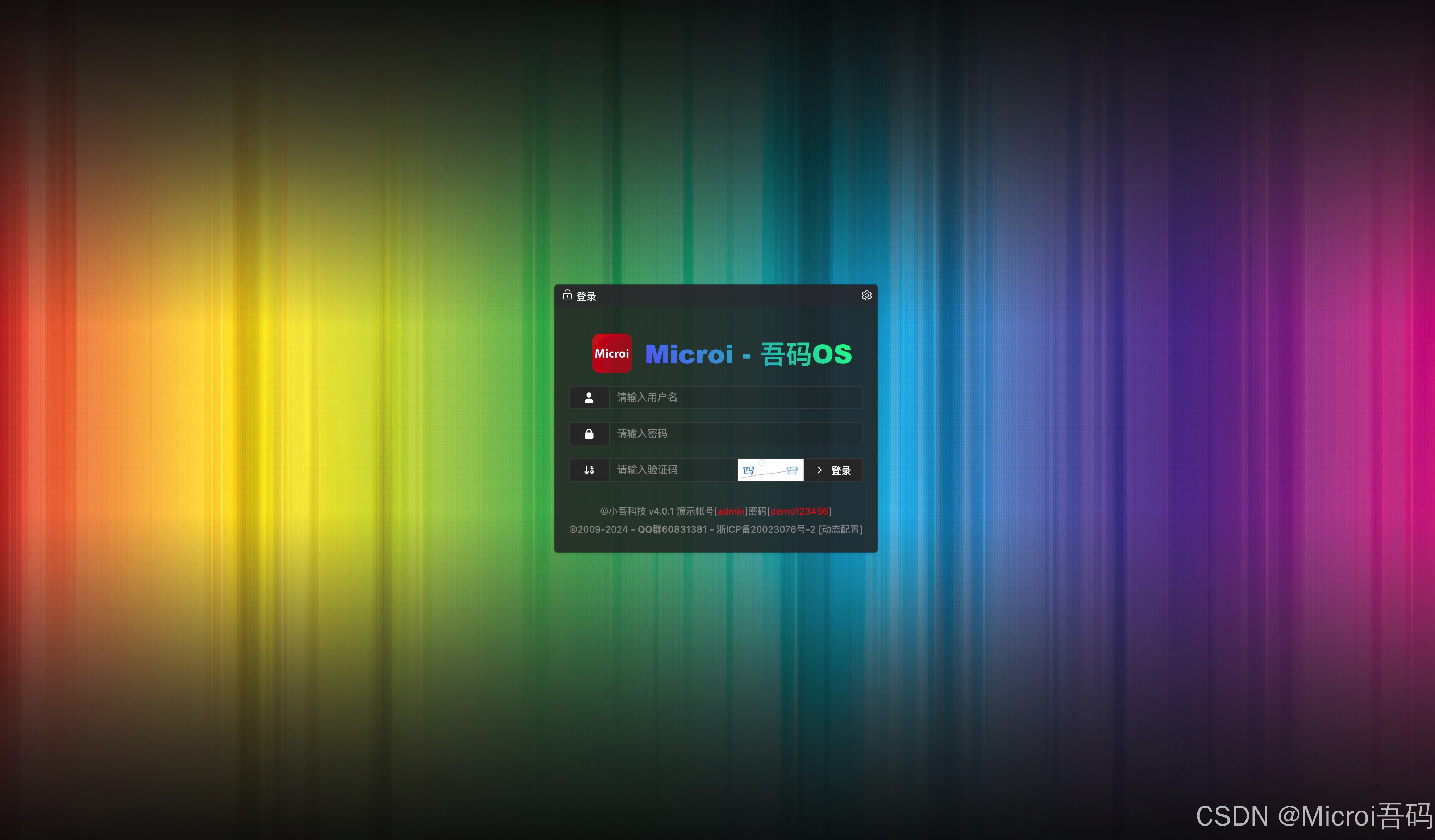
📸Installation successful preview
🧩Tread the pit
| Problem | Solution |
|---|---|
| Some servers cannot use Docker acceleration sources | 将 Redis、MySQL、MongoDB、MinIO、Watchtower 全部打包上传到阿里云容器镜像服务 |
| MySQL 'lower_case_table_names = 1' does not support environment variables | Implementation by mounting configuration file |
| MySQL performance optimization | Configure buffer parameters by customizing 'my.cn f' |
| MySQL Automatically Create/Restore Databases | The script automatically downloads the SQL backup and restores it |
| Data security | MySQL, MinIO and other data directories are added to the random directory mechanism. |
| Port conflict | Add random port and random account password mechanism to all environments |
| The user needs to manually confirm the network mode | You must select public IP or intranet IP to install |
| Ubuntu 24.x compatibility | Script Upgrade to MySQL 5.7 Redis 7.4.2 |
🖥Installation process diagram
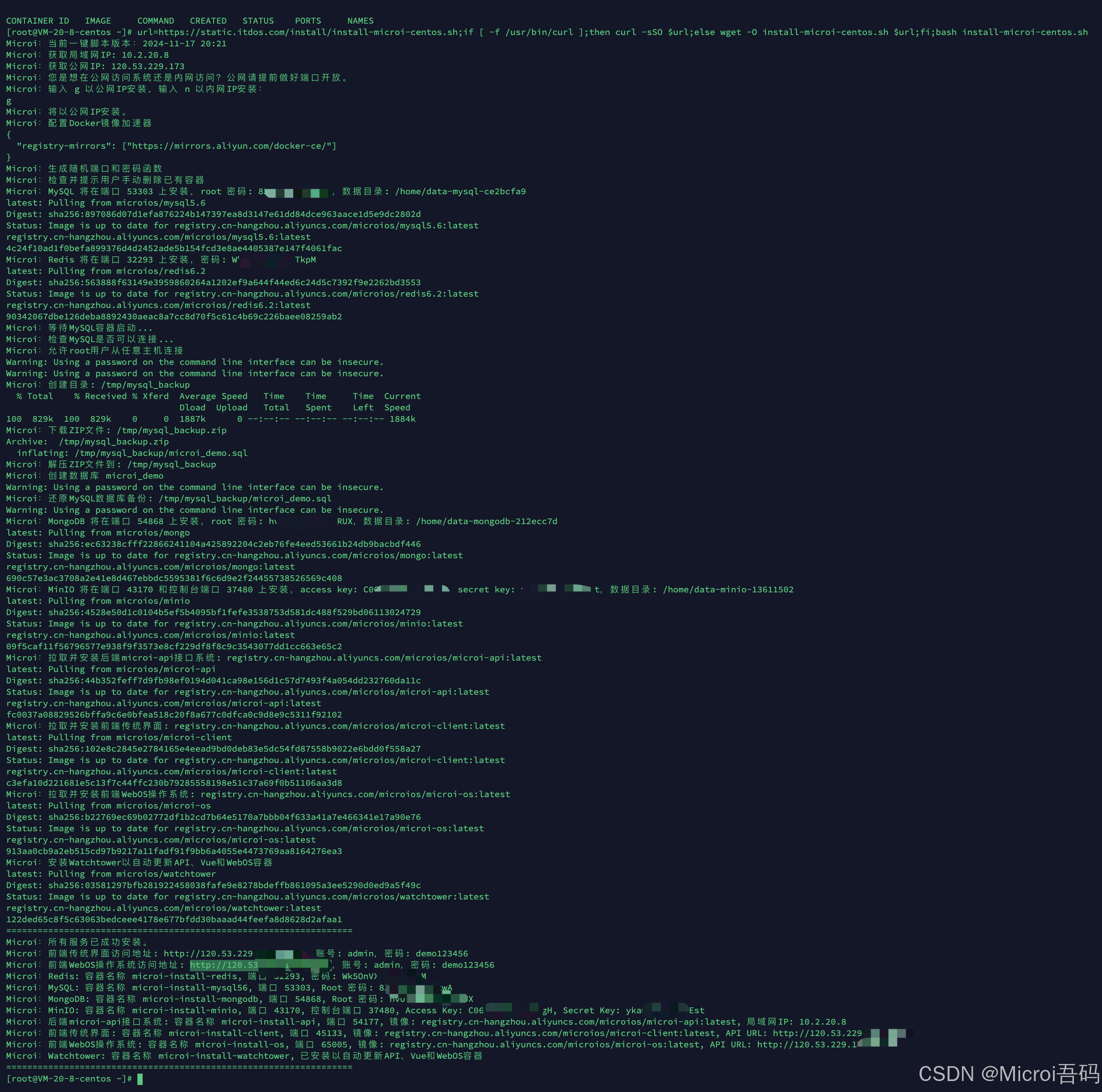
🐳Docker installation result

📝Script source code
version information
- Updated at * * 2025-04-03 17:18 *, and may be updated frequently in the future.
- Latest script address:Gitee repository
Expand to view the powershell code (302 lines)
#!/bin/bash

echo 'Microi:当前一键脚本版本:2025-04-03 17:18'
# 获取局域网IP
LAN_IP=$(hostname -I | awk '{print $1}')
echo 'Microi:获取局域网IP: '$LAN_IP

# 获取公网IP
PUBLIC_IP=$(curl -s ifconfig.me)
echo 'Microi:获取公网IP: '$PUBLIC_IP

# 询问用户安装类型
echo 'Microi:您是想在公网访问系统还是内网访问?公网请提前做好端口开放。'
echo 'Microi:输入 g 以公网IP安装,输入 n 以内网IP安装:'
read -r install_type

if [ "$install_type" == "g" ]; then
  ACCESS_IP=$PUBLIC_IP
  echo 'Microi:将以公网IP安装。'
elif [ "$install_type" == "n" ]; then
  ACCESS_IP=$LAN_IP
  echo 'Microi:将以内网IP安装。'
else
  echo 'Microi:无效的输入,脚本退出。'
  exit 1
fi

# 检查Docker是否安装
if ! [ -x "$(command -v docker)" ]; then
  echo 'Microi:您未安装docker,推荐使用1Panel、宝塔等面板工具来安装docker并管理您的服务器!'
  echo 'Microi:是否立即安装Docker?(y/n)'
  read -r answer
  if [ "$answer" != "y" ]; then
    echo 'Microi:安装取消,脚本退出。'
    exit 1
  fi

  # 安装Docker
  echo 'Microi:开始安装Docker...'
  sudo yum update -y
  sudo yum install -y yum-utils
  sudo yum-config-manager --add-repo https://mirrors.aliyun.com/docker-ce/linux/centos/docker-ce.repo
  sudo yum install -y docker-ce docker-ce-cli containerd.io
  sudo systemctl start docker
  sudo systemctl enable docker
  echo 'Microi:Docker已成功安装。'
fi

# 配置Docker镜像加速器(现在太难找了,如果报错timeout就去阿里云申请一个自己私有的加速地址)
# 2025-04-02注释以下脚本,可能会出现问题导致docker无法启动,解决方案是执行#rm -f /etc/docker/daemon.json,再执行sudo systemctl daemon-reload、sudo systemctl restart docker
# DOCKER_ACCELERATOR="https://mirrors.aliyun.com/docker-ce/"
# echo 'Microi:配置Docker镜像加速器'
# sudo tee /etc/docker/daemon.json <<EOF
# {
#   "registry-mirrors": ["${DOCKER_ACCELERATOR}"]
# }
# EOF
# sudo systemctl daemon-reload
# sudo systemctl restart docker

# 生成随机端口和密码函数
echo 'Microi:生成随机端口和密码函数'
generate_random_port() {
  shuf -i 17777-65535 -n 1
}

generate_random_password() {
  openssl rand -base64 12 | tr -dc 'A-Za-z0-9' | head -c16
}

# 生成随机数据目录
generate_random_data_dir() {
  local container_name="$1"
  local dir="/home/data-${container_name}-$(openssl rand -hex 4)"
  mkdir -p "${dir}"
  echo "${dir}"
}

# 检查并提示用户手动删除已有容器
echo 'Microi:检查并提示用户手动删除已有容器'
if docker ps -a --format '{{.Names}}' | grep -q '^microi-install-'; then
  echo 'Microi:脚本重复运行前,需要先通过命令【docker ps -a --format "{{.Names}}" | grep "^microi-install-" | xargs -r docker rm -f】删除所有相关容器后再重新运行,注意此操作将会删除数据库、MinIO文件,请谨慎操作'
  exit 1
fi

# 检查并安装unzip
if ! [ -x "$(command -v unzip)" ]; then
  echo 'Microi:您未安装unzip,正在为您安装...'
  sudo yum install -y unzip
  if [ $? -ne 0 ]; then
    echo 'Microi:unzip安装失败,脚本退出。'
    exit 1
  fi
  echo 'Microi:unzip已成功安装。'
else
  echo 'Microi:unzip已安装。'
fi

# 确保数据目录全新且可写
MYSQL_PORT=$(generate_random_port)
MYSQL_ROOT_PASSWORD=$(generate_random_password)
MYSQL_DATA_DIR=$(generate_random_data_dir "mysql")
rm -rf "${MYSQL_DATA_DIR}"
mkdir -p "${MYSQL_DATA_DIR}"
sudo chown -R 999:999 "${MYSQL_DATA_DIR}"
sudo chmod 755 "${MYSQL_DATA_DIR}"  # 避免 Docker 权限问题

# 创建 MySQL 配置文件
MYSQL_CONF_FILE="/tmp/my_microi.cnf"
cat <<EOF > ${MYSQL_CONF_FILE}
[mysqld]
lower_case_table_names = 1
max_connections = 500
key_buffer_size = 268435456
query_cache_size = 268435456
tmp_table_size = 268435456
innodb_buffer_pool_size = 536870912
innodb_log_buffer_size = 268435456
sort_buffer_size = 1048576
read_buffer_size = 2097152
read_rnd_buffer_size = 1048576
join_buffer_size = 2097152
thread_stack = 393216
binlog_cache_size = 196608
thread_cache_size = 192
table_open_cache = 1024
character_set_server=utf8mb4
collation_server=utf8mb4_unicode_ci
EOF

# 安装MySQL 5.7
echo 'Microi:MySQL 将在端口 '${MYSQL_PORT}' 上安装,root 密码: '${MYSQL_ROOT_PASSWORD},数据目录: ${MYSQL_DATA_DIR}
docker pull registry.cn-hangzhou.aliyuncs.com/microios/mysql:5.7
docker run -itd --restart=always --log-opt max-size=10m --log-opt max-file=10 --privileged=true \
  --name microi-install-mysql57 -p ${MYSQL_PORT}:3306 \
  -v ${MYSQL_DATA_DIR}:/var/lib/mysql \
  -v ${MYSQL_CONF_FILE}:/etc/mysql/conf.d/my_microi.cnf \
  -e MYSQL_ROOT_PASSWORD=${MYSQL_ROOT_PASSWORD} \
  -e MYSQL_TIME_ZONE=Asia/Shanghai \
  -d registry.cn-hangzhou.aliyuncs.com/microios/mysql:5.7

# 安装Redis 7.4.2
REDIS_PORT=$(generate_random_port)
REDIS_PASSWORD=$(generate_random_password)
echo 'Microi:Redis 将在端口 '${REDIS_PORT}' 上安装,密码: '${REDIS_PASSWORD}
docker pull registry.cn-hangzhou.aliyuncs.com/microios/redis:7.4.2
docker run -itd --restart=always --log-opt max-size=10m --log-opt max-file=10 --privileged=true \
  --name microi-install-redis -p ${REDIS_PORT}:6379 \
  -e REDIS_PASSWORD=${REDIS_PASSWORD} \
  -d registry.cn-hangzhou.aliyuncs.com/microios/redis:7.4.2 redis-server --requirepass ${REDIS_PASSWORD}

# 等待MySQL容器启动
echo 'Microi:等待MySQL容器启动...'
sleep 5 # 等待5秒,可根据实际情况调整

# 检查MySQL是否可以连接
echo 'Microi:检查MySQL是否可以连接...'
for i in {1..10}; do
  docker exec -i microi-install-mysql57 mysql -uroot -p${MYSQL_ROOT_PASSWORD} -e "SELECT 1" > /dev/null 2>&1 && break
  sleep 1
done

# 如果MySQL服务启动失败,则退出脚本
if [ $i -eq 60 ]; then
  echo 'Microi:MySQL服务启动失败,脚本退出。'
  exit 1
fi

# 允许root用户从任意主机连接
echo 'Microi:允许root用户从任意主机连接'
docker exec -i microi-install-mysql57 mysql -uroot -p${MYSQL_ROOT_PASSWORD} -e "USE mysql; GRANT ALL PRIVILEGES ON *.* TO 'root'@'%' IDENTIFIED BY '${MYSQL_ROOT_PASSWORD}' WITH GRANT OPTION;"
docker exec -i microi-install-mysql57 mysql -uroot -p${MYSQL_ROOT_PASSWORD} -e "FLUSH PRIVILEGES;"

# 下载并解压MySQL数据库备份
SQL_ZIP_URL="https://static.itdos.com/install/mysql5.6.50-bak-latest.sql.zip"
SQL_ZIP_FILE="/tmp/mysql_backup.zip"
SQL_DIR="/tmp/mysql_backup"
SQL_FILE="${SQL_DIR}/microi_demo.sql"

# 创建目录
mkdir -p ${SQL_DIR}
echo 'Microi:创建目录: '${SQL_DIR}

# 下载ZIP文件
curl -o ${SQL_ZIP_FILE} ${SQL_ZIP_URL}
echo 'Microi:下载ZIP文件: '${SQL_ZIP_FILE}

# 以下解压可能会在ubuntu24.04报错权限不够,所以新增一条命令
# sudo chmod 777 ${SQL_ZIP_FILE}

# 解压ZIP文件并覆盖现有文件
unzip -o -d ${SQL_DIR} ${SQL_ZIP_FILE}
echo 'Microi:解压ZIP文件到: '${SQL_DIR}

# 创建数据库
echo 'Microi:创建数据库 microi_demo'
docker exec -i microi-install-mysql57 mysql -uroot -p${MYSQL_ROOT_PASSWORD} -e "CREATE DATABASE IF NOT EXISTS microi_demo CHARACTER SET utf8mb4 COLLATE utf8mb4_unicode_ci;"

# 还原MySQL数据库备份
echo 'Microi:还原MySQL数据库备份: '${SQL_FILE}
docker exec -i microi-install-mysql57 mysql -uroot -p${MYSQL_ROOT_PASSWORD} microi_demo < ${SQL_FILE}

# 安装MongoDB
MONGO_PORT=$(generate_random_port)
MONGO_ROOT_PASSWORD=$(generate_random_password)
MONGO_DATA_DIR=$(generate_random_data_dir "mongodb")
echo 'Microi:MongoDB 将在端口 '${MONGO_PORT}' 上安装,root 密码: '${MONGO_ROOT_PASSWORD},数据目录: ${MONGO_DATA_DIR}
docker pull registry.cn-hangzhou.aliyuncs.com/microios/mongo:latest
docker run -itd --restart=always --log-opt max-size=10m --log-opt max-file=10 --privileged=true \
  --name microi-install-mongodb -p ${MONGO_PORT}:27017 \
  -v ${MONGO_DATA_DIR}:/data/db \
  -e MONGO_INITDB_ROOT_USERNAME=root \
  -e MONGO_INITDB_ROOT_PASSWORD=${MONGO_ROOT_PASSWORD} \
  -d registry.cn-hangzhou.aliyuncs.com/microios/mongo:latest

# 安装MinIO
MINIO_PORT=$(generate_random_port)
MINIO_CONSOLE_PORT=$(generate_random_port)
MINIO_ACCESS_KEY=$(generate_random_password)
MINIO_SECRET_KEY=$(generate_random_password)
MINIO_DATA_DIR=$(generate_random_data_dir "minio")
echo 'Microi:MinIO 将在端口 '${MINIO_PORT}' 和控制台端口 '${MINIO_CONSOLE_PORT}' 上安装,access key: '${MINIO_ACCESS_KEY}',secret key: '${MINIO_SECRET_KEY},数据目录: ${MINIO_DATA_DIR}
docker pull registry.cn-hangzhou.aliyuncs.com/microios/minio:latest
docker run -itd --restart=always --log-opt max-size=10m --log-opt max-file=10 --privileged=true \
  --name microi-install-minio -p ${MINIO_PORT}:9000 -p ${MINIO_CONSOLE_PORT}:9001 \
  -v ${MINIO_DATA_DIR}:/data \
  -v ${MINIO_DATA_DIR}/config:/root/.minio \
  -e "MINIO_ROOT_USER=${MINIO_ACCESS_KEY}" \
  -e "MINIO_ROOT_PASSWORD=${MINIO_SECRET_KEY}" \
  -d registry.cn-hangzhou.aliyuncs.com/microios/minio:latest server /data --console-address ":9001"

# 拉取并安装后端microi-api接口系统
API_PORT=$(generate_random_port)
API_IMAGE="registry.cn-hangzhou.aliyuncs.com/microios/microi-api:latest"
API_CONTAINER_NAME="microi-install-api"
OS_CLIENT_DB_CONN="Data Source=${LAN_IP};Database=microi_demo;User Id=root;Password=${MYSQL_ROOT_PASSWORD};Port=${MYSQL_PORT};Convert Zero Datetime=True;Allow Zero Datetime=True;Charset=utf8mb4;Max Pool Size=500;sslmode=None;"
echo 'Microi:拉取并安装后端microi-api接口系统: '${API_IMAGE}
docker pull ${API_IMAGE}
docker run -itd --restart=always --log-opt max-size=10m --log-opt max-file=10 --privileged=true \
  --name ${API_CONTAINER_NAME} -p ${API_PORT}:80 \
  -e "OsClient=iTdos" \
  -e "OsClientType=Product" \
  -e "OsClientNetwork=Internal" \
  -e "OsClientDbConn=${OS_CLIENT_DB_CONN}" \
  -e "OsClientRedisHost=${LAN_IP}" \
  -e "OsClientRedisPort=${REDIS_PORT}" \
  -e "OsClientRedisPwd=${REDIS_PASSWORD}" \
  -e "AuthServer=http://${LAN_IP}:${API_PORT}" \
  -v /etc/localtime:/etc/localtime \
  -v /usr/share/fonts:/usr/share/fonts \
  -d ${API_IMAGE}

# 拉取并安装前端传统界面
VUE_PORT=$(generate_random_port)
VUE_IMAGE="registry.cn-hangzhou.aliyuncs.com/microios/microi-client:latest"
VUE_CONTAINER_NAME="microi-install-client"
echo 'Microi:拉取并安装前端传统界面: '${VUE_IMAGE}
docker pull ${VUE_IMAGE}
docker run -itd --restart=always --log-opt max-size=10m --log-opt max-file=10 --privileged=true \
  --name ${VUE_CONTAINER_NAME} -p ${VUE_PORT}:80 \
  -e "OsClient=iTdos" \
  -e "ApiBase=http://${ACCESS_IP}:${API_PORT}" \
  -v /etc/localtime:/etc/localtime \
  -v /usr/share/fonts:/usr/share/fonts \
  -d ${VUE_IMAGE}

# 拉取并安装前端WebOS操作系统
WEBOS_PORT=$(generate_random_port)
WEBOS_IMAGE="registry.cn-hangzhou.aliyuncs.com/microios/microi-os:latest"
WEBOS_CONTAINER_NAME="microi-install-os"
echo 'Microi:拉取并安装前端WebOS操作系统: '${WEBOS_IMAGE}
docker pull ${WEBOS_IMAGE}
docker run -itd --restart=always --log-opt max-size=10m --log-opt max-file=10 --privileged=true \
  --name ${WEBOS_CONTAINER_NAME} -p ${WEBOS_PORT}:80 \
  -e "OsClient=iTdos" \
  -e "ApiBase=http://${ACCESS_IP}:${API_PORT}" \
  -v /etc/localtime:/etc/localtime \
  -v /usr/share/fonts:/usr/share/fonts \
  -d ${WEBOS_IMAGE}

# 安装Watchtower
WATCHTOWER_CONTAINER_NAME="microi-install-watchtower"
echo 'Microi:安装Watchtower以自动更新API、Vue和WebOS容器'
docker pull registry.cn-hangzhou.aliyuncs.com/microios/watchtower:latest
docker run -itd --restart=always --log-opt max-size=10m --log-opt max-file=10 --privileged=true \
  --name ${WATCHTOWER_CONTAINER_NAME} -v /var/run/docker.sock:/var/run/docker.sock \
  registry.cn-hangzhou.aliyuncs.com/microios/watchtower:latest ${API_CONTAINER_NAME} ${VUE_CONTAINER_NAME} ${WEBOS_CONTAINER_NAME}

# 输出所有服务的信息
echo -e "=================================================================="
echo 'Microi:所有服务已成功安装。'
echo 'Microi:前端传统界面访问地址: http://'$ACCESS_IP':'$VUE_PORT',账号: admin,密码: demo123456'
echo 'Microi:前端WebOS操作系统访问地址: http://'$ACCESS_IP':'$WEBOS_PORT',账号: admin,密码: demo123456'
echo 'Microi:Redis: 容器名称 microi-install-redis, 端口 '${REDIS_PORT}', 密码: '${REDIS_PASSWORD}
echo 'Microi:MySQL: 容器名称 microi-install-mysql57, 端口 '${MYSQL_PORT}', Root 密码: '${MYSQL_ROOT_PASSWORD}
echo 'Microi:MongoDB: 容器名称 microi-install-mongodb, 端口 '${MONGO_PORT}', Root 密码: '${MONGO_ROOT_PASSWORD}
echo 'Microi:MinIO: 容器名称 microi-install-minio, 端口 '${MINIO_PORT}', 控制台端口 '${MINIO_CONSOLE_PORT}', Access Key: '${MINIO_ACCESS_KEY}, Secret Key: ${MINIO_SECRET_KEY}
echo 'Microi:后端microi-api接口系统: 容器名称 '${API_CONTAINER_NAME}', 端口 '${API_PORT}', 镜像: '${API_IMAGE}', 局域网IP: '${LAN_IP}
echo 'Microi:前端传统界面: 容器名称 '${VUE_CONTAINER_NAME}', 端口 '${VUE_PORT}', 镜像: '${VUE_IMAGE}', API URL: http://'${ACCESS_IP}':'${API_PORT}
echo 'Microi:前端WebOS操作系统: 容器名称 '${WEBOS_CONTAINER_NAME}', 端口 '${WEBOS_PORT}', 镜像: '${WEBOS_IMAGE}', API URL: http://'${ACCESS_IP}':'${API_PORT}
echo 'Microi:Watchtower: 容器名称 '${WATCHTOWER_CONTAINER_NAME}', 已安装以自动更新API、Vue和WebOS容器'
echo -e "=================================================================="